Your Google Business Profile disappears from Maps, or you log in and see a warning that it's suspended. For many local businesses that means the phone suddenly goes quiet. It's stressful, but most suspensions can be fixed if you understand why they happen and appeal properly.
This guide explains the common causes, what to do first, and how to appeal without making things worse.
First: don't panic, and don't make a new profile
The worst thing you can do is create a new profile for the same business. Google may treat it as a duplicate and suspend that too, and it makes the original harder to recover. Don't keep editing the suspended profile either. Every change can trigger another review.
Take a breath, take screenshots of what you see, and work through the steps below.
What the suspension notice means
Google uses different wording, and the difference matters:
- Suspended, and the profile doesn't show on Maps. Google believes the business itself breaks its rules: it might not be a real business, the address might not be eligible, or it may be a duplicate.
- Limited or restricted, and the profile still shows but you can't manage it, or some features are turned off. The business is usually fine, but something about the account or a recent edit raised a flag.
- "Your profile was suspended due to suspicious activity". Often caused by unusual edits, sign-ins or new managers being added, sometimes without any wrongdoing.
Check the email Google sent and the message in your profile dashboard. They usually point to the general reason.
The most common causes
Most suspensions come from a short list:
- Keywords in the business name. "Smith Plumbing, Best Emergency Plumber Madison" instead of your real name, "Smith Plumbing".
- An ineligible address. A virtual office, a PO box, a coworking desk you don't staff, or a home address shown publicly when customers don't visit you.
- Service area problems. Showing an address when you only travel to customers, or a service area that's unrealistically large.
- Duplicate profiles for the same business at the same address.
- A big change all at once: a new name, address, phone and website in a single edit.
- Business types Google checks closely, such as locksmiths, garage door services, movers and some legal and medical services.
- Account problems: a manager on your profile with a history of violations, or unusual sign-in activity.
Our guide to the Google Business Profile settings that matter explains how each of these should be set up.
Step 1: Fix the cause before you appeal
Read Google's Business Profile guidelines and compare them with your profile line by line. Then fix what's wrong:
- Change the name to your real, legal or trading name, exactly as on your signs and documents.
- Hide your address if customers don't visit you, and set a realistic service area instead.
- Remove any managers you don't recognise.
- Note any duplicates so you can mention them in the appeal.
If you can't edit the profile while it's suspended, write down exactly what you'll change so you can explain it in the appeal.
Step 2: Gather your evidence first
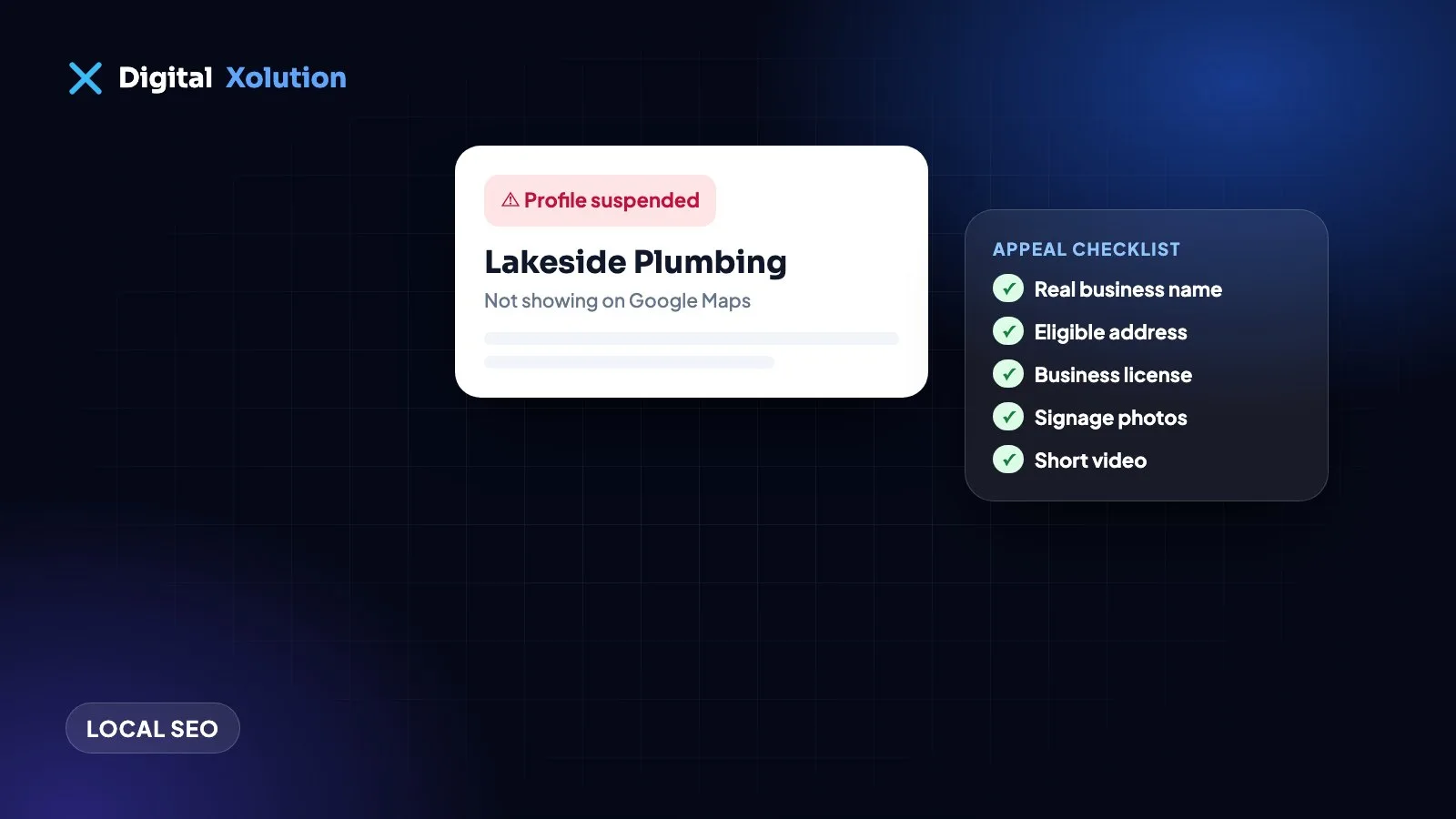
Google's appeal form asks you to show that the business is real and operates where you say. Have everything ready before you start, because the time to attach it after submitting can be short. Useful evidence includes:
- Business registration or license showing the business name and address.
- A utility bill or lease for the business address, recent and matching the profile.
- Photos of your permanent signage at the location, showing the street or building where possible.
- A short video walking from the street to your entrance and inside your premises or showing your branded vehicle and tools.
- Your website with the same name, address and phone number.
Make sure names and addresses match across every document. Mismatches are a common reason appeals fail.
Step 3: Submit the appeal
Use the official Google Business Profile appeals tool linked from your profile dashboard or Google's help pages. Be short and factual: say what the business is, what you've fixed and what evidence you've attached. You don't need to argue or write an essay.
Avoid paying anyone who claims to have "a contact at Google" or guarantees reinstatement. Genuine help comes from fixing the profile and presenting good evidence, which you can do yourself.
Step 4: Wait, and keep an eye on your email
Reviews can take from a few days to a few weeks. Watch your email for questions from Google and reply quickly. Don't submit several appeals at once.
If the appeal is rejected, read the reason, fix anything you missed, and request another review with new or better evidence rather than the same documents.
While you wait: keep the phone ringing
- Make sure your website has your phone number on every page and loads quickly.
- Check your other listings (Apple Maps, Bing, Yelp, Facebook) are correct and up to date.
- Ask regular customers to call you directly.
If Maps sends you most of your work, this is a good reminder not to rely on one channel. Read why your business isn't showing on Google Maps for other ways to strengthen your local presence.
How to avoid it happening again
- Use your real business name, without extra keywords.
- Only show an address customers can actually visit, and staff it during your listed hours.
- Make big changes one at a time, with a few days between them.
- Keep the list of managers short, and remove people who leave.
- Respond to reviews and keep the profile active, but don't make constant edits.
Profile suspended and need help? Our local SEO service includes profile reviews and reinstatement help, or get a free audit of your local listings.